What It Does
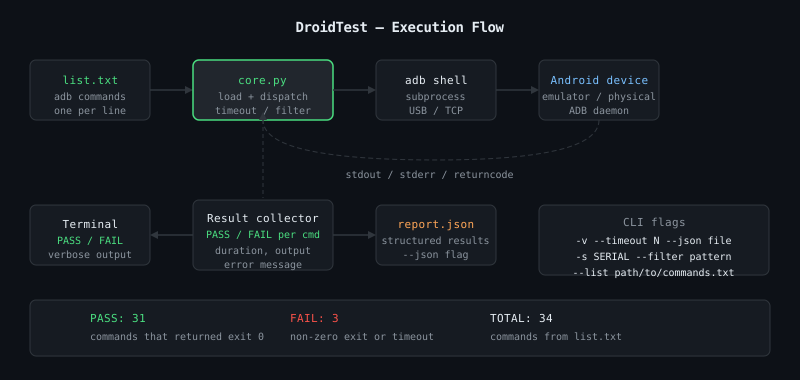
DroidTest is a command-line runner for Android device diagnostics. You give it a list of adb subcommands, it runs them all, and gives you a clean pass/fail report.
| |
  _____            _     _ _______        _
 |  __ \          (_)   | |__   __|      | |
 | |  | |_ __ ___  _  __| |  | | ___  ___| |_ ___ _ __
 | |  | | '__/ _ \| |/ _` |  | |/ _ \/ __| __/ _ \ '__|
 | |__| | | | (_) | | (_| |  | |  __/\__ \ ||  __/ |
 |_____/|_|  \___/|_|\__,_|  |_|\___||___/\__\___|_|

PASS: shell getprop ro.product.model
PASS: shell dumpsys battery
FAIL: shell dumpsys proximity
PASS: shell wm size
...

Summary: 31 passed, 3 failed, 34 total
The Problem It Solves
Testing an Android device’s hardware and software state manually means typing adb shell ... dozens of times, reading the output, and keeping track of what passed. That’s tedious and error-prone.
DroidTest automates the loop: define your test list once, run it, get a structured report. Useful for:
- Verifying a device after flashing a custom ROM
- Hardware QA checks (sensors, network, storage)
- Automating repetitive adb diagnostic steps in a workflow
- Getting a quick health snapshot of a connected device
Architecture
The project went through a refactoring (see Before / After below) that split a single flat script into a proper package:
DroidTest.py          ← entry point (backward-compatible launcher)
droidtest/
  __init__.py
  core.py             ← command loading and execution logic
  cli.py              ← argument parsing, output, banner
list.txt              ← default command list
tests/
  test_core.py        ← unit tests
This separation means the core logic (loading commands, running adb, collecting results) can be tested independently from the CLI behavior.
How It Works
Command loading (core.py)
Commands are read from a text file. Each line is an adb subcommand — the adb prefix is added automatically. Comments (#) and blank lines are skipped.
| |
| |
Command execution
Each command is run via subprocess.run with shlex.split for safe argument handling. Results are captured as CommandResult dataclass instances with command, returncode, stdout, stderr, and an ok property.
| |
shlex.split is important — it handles commands with quoted arguments correctly, where a naive .split() would break on spaces inside arguments.
Device targeting
If you have multiple devices connected, use --device to target a specific one:
| |
This passes -s <serial> to every adb invocation.
Built-in Command Library
The OtherUsefulTests.txt file contains a reference list of over 60 documented adb test commands covering:
- Touchscreen, sensors (accelerometer, gyroscope, barometer, GPS, NFC, proximity, compass)
- Battery health, temperature, voltage, capacity
- Wi-Fi, Bluetooth, mobile data, network signal
- Storage read/write speed (
ddbenchmark) - Camera, microphone, speaker, flashlight, vibration
- CPU frequency and temperature
- RAM, display resolution and density
- Security: root status, encryption state, security patch level
- Device info: model, manufacturer, serial, IMEI, Android version, kernel
CLI Options
| Flag | Description |
|---|---|
-c, --commands-file | Path to command list (default: list.txt) |
-d, --device | ADB device serial (adb -s ...) |
-t, --timeout | Per-command timeout in seconds |
-v, --verbose | Print stdout/stderr per command |
-S, --success-only | Show only passing commands |
-F, --fail-only | Show only failing commands |
--stop-on-failure | Stop after the first failed command |
--json FILE | Write full results as JSON |
--success-file FILE | Append pass details to a file |
--fail-file FILE | Append failure details to a file |
JSON Report Format
| |
Before / After
The original backup.py was a single-file script: argument parsing, execution, and output all in one function, with hard-coded command lists and no separation of concerns.
| Aspect | Before | After |
|---|---|---|
| Structure | Single flat script | Package with core.py + cli.py |
| Command loading | Hard-coded list in source | External file, comment-aware parser |
| Argument parsing | split() on strings | shlex.split() — handles quoted args |
| Timeout handling | None | Per-command timeout with subprocess |
| Device targeting | None | --device flag → adb -s |
| Output filtering | None | --success-only, --fail-only |
| Report export | None | JSON export, success/fail log files |
| Exit codes | Always 0 | 0 all pass, 2 any failure |
| Tests | None | Unit tests in tests/ |
Connect Your Device
- Enable Developer options — Settings → About phone → tap Build number 7 times
- Enable USB debugging — Settings → Developer options → USB debugging
- Connect via USB, accept the RSA key prompt on the phone
- Verify:
adb devicesshould show your device withdevicestatus
If the device shows unauthorized, revoke USB debugging authorizations on the device and reconnect. If nothing appears, try adb kill-server && adb start-server.
Running Tests
| |